> ## Documentation Index
> Fetch the complete documentation index at: https://velt.dev/docs/llms.txt
> Use this file to discover all available pages before exploring further.
# Page Mode Setup
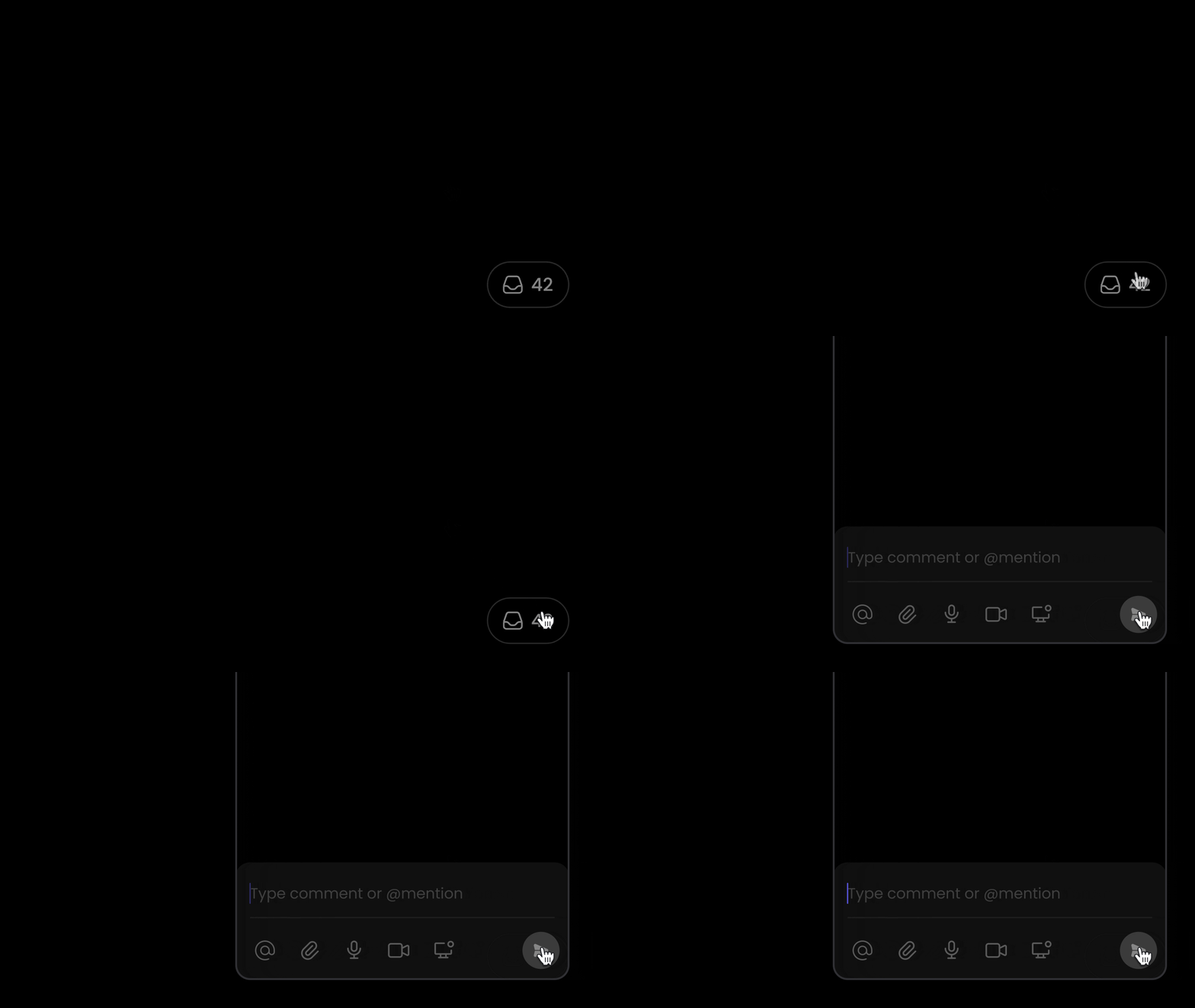
> [tab] React / Next.js
>
> ## 1. Import CommentsSidebar Components
>
> Import the Comments Sidebar Components.
>
> ```jsx theme={null}
> import {
> VeltProvider,
> VeltCommentsSidebar,
> VeltSidebarButton,
> } from '@veltdev/react';
> ```
>
> ## 2. Add Comments and Sidebar components
>
> Add the `VeltComments` and `VeltCommentsSidebar` components to the root of your app.
>
> ```jsx theme={null}
>
>
>
>
> ```
>
> ## 3. Enable Page Mode
>
> Set the `pageMode` attribute to true on the `VeltCommentsSidebar` component.
>
> ```js App.js theme={null}
>
> ```
>
> ## 4. Add Sidebar button component
>
> Add the Sidebar button to toggle the sidebar.
>
> ```jsx theme={null}
>
>
>
> ```
>
> ## 5. Test Page Mode
>
> Test Page Mode out by opening the sidebar. You should be able to leave Page Mode comments at the bottom of the Comments Sidebar.
>
> 
> [tab] Other Frameworks
>
> ## 1. Place the `\` component
>
> Place the `` component at the root of your app.
>
> ```html theme={null}
>
> ```
>
> ## 2. Enable Page Mode
>
> Enable Page Mode by setting the `page-mode` attribute to `true` on the `` component.
>
> ```html theme={null}
>
> ```
>
> ## 3. Place the `\` component
>
> Place the `` component wherever you want the toggle button to appear.
>
> ```html theme={null}
>
> ```
>
> ## 4. Test Page Mode
>
> Test Page Mode out by opening the sidebar. You should be able to leave Page Mode comments at the bottom of the Comments Sidebar.
>
> 
```jsx React / Next.js theme={null}
import {
VeltProvider,
VeltCommentsSidebar,
VeltSidebarButton,
} from '@veltdev/react';
export default function App() {
return (
{/* Add VeltComments to the root of your app provider */}
{/* Add VeltCommentsSidebar to the root of your app provider */}
{/* Add VeltCommentSideBarButton wherever you want it to appear */}
);
}
```
```html HTML theme={null}
Collaboration App
```
This documentation is built and hosted on [Mintlify](https://mintlify.com), a developer documentation platform.