> ## Documentation Index
> Fetch the complete documentation index at: https://velt.dev/docs/llms.txt
> Use this file to discover all available pages before exploring further.

# Custom Video Player Setup

> Use this guide to add collaboration into your own custom video player.
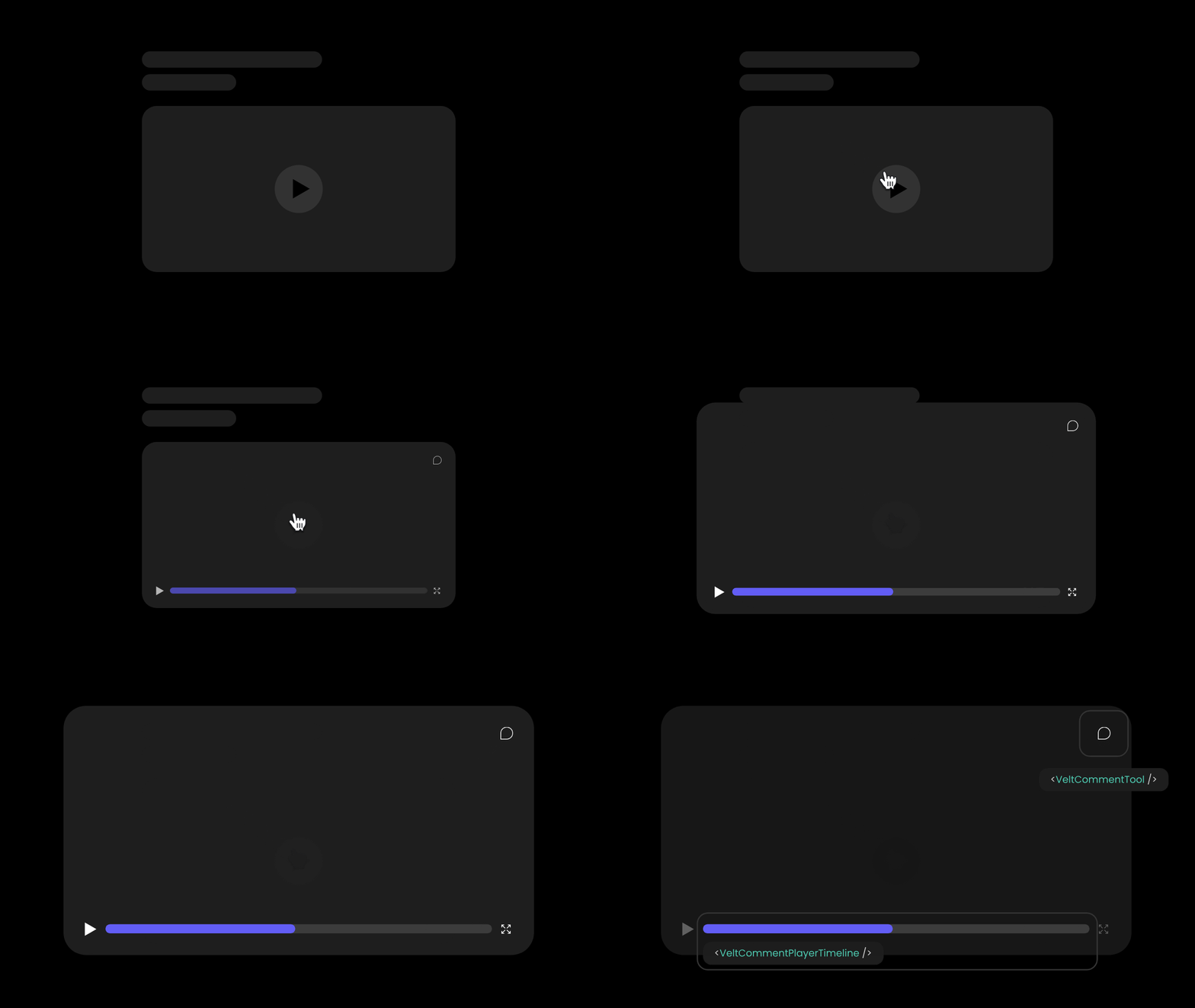
![](https://mintcdn.com/velt/gAz_vLsG-ukKamYM/gifs/custom-video-player.gif?s=969c638e66ef591467cb2203924c7b9e)

## Setup

### Step 1: Set up Velt Components in your app

You will be using the following components:

* `Velt Comments`: Renders comments on the DOM.
* `Velt Comment Tool`: Enables or disables adding comments.
* `Velt Reaction Tool`: Enables or disables adding reactions.
* `Velt Comment Player Timeline`: Adds comments bubble over your player seek bar.
* `Velt Comments Sidebar`: Adds a sidebar that shows all comments. Users can also search, filter & navigate to the comments from here.
* `Velt Sidebar Button`: Toggles the sidebar on/off.

#### A) Add the `Velt Comments` component in the root of your app

Add the `Velt Comments` component to the root of your app.

> [tab] React / Next.js
>
> ```jsx theme={null}
> <VeltComments />
> ```

> [tab] Other Frameworks
>
> ```html theme={null}
> <velt-comments></velt-comments>
> ```

#### B) Add the `Velt Comment Tool` component wherever you want your render the comment tool.

Note you can also provide your own button to this component.

> [tab] React / Next.js
>
> ```jsx theme={null}
> <VeltCommentTool>
>   <button>
>     {/* your custom button (optional) */}
>   </button>
> </VeltCommentTool>
> ```

> [tab] Other Frameworks
>
> ```jsx theme={null}
> <velt-comment-tool>
>   <button>
>     <!-- your custom button (optional) -->
>   </button>
> </velt-comment-tool>
> ```

> [!NOTE]
>
> **Disable Comment Tool**
> You can disable the comment tool to temporarily or conditionally restrict comment creation while still allowing users to view existing comments.
>
> > [accordion] See Example
> >
> > > [tab] React / Next.js
> > >
> > > ```jsx theme={null}
> > > <VeltCommentTool disabled={true}>
> > >   <button>
> > >     {/* your custom button (optional) */}
> > >   </button>
> > > </VeltCommentTool>
> > > ```
> >
> > > [tab] Other Frameworks
> > >
> > > ```html theme={null}
> > > <velt-comment-tool disabled="true">
> > >   <button>
> > >     <!-- your custom button (optional) -->
> > >   </button>
> > > </velt-comment-tool>
> > > ```

#### C) Add the `Velt Reaction Tool` component wherever you want your render the reaction tool.

* Provide the video player ID on which you want the reactions to be added.
* Add an event handler to handle `onReactionToolClick` events.

> [tab] React / Next.js
>
> ```jsx theme={null}
> <VeltReactionTool videoPlayerId={videoPlayerId}
>   onReactionToolClick={() => onReactionToolClick()}>
> </VeltReactionTool>
> ```

> [tab] Other Frameworks
>
> ```html theme={null}
> <div>
>   <velt-reaction-tool video-player-id="videoPlayerId"></velt-reaction-tool>
> </div>
> ```
>
> ```js theme={null}
> const reactionToolTag = document.querySelector('velt-reaction-tool');
> reactionToolTag.addEventListener('onReactionToolClick', (event) => {
>   console.log('reaction tool clicked', event.detail);
> });
> ```

#### D) Place the `Velt Comment Player Timeline` component as a sibling to your video player.

* To show comment bubbles on your player seek bar, add the `Velt Comment Player Timeline` component as a sibling to your video player component.
* It will auto adjust to the same width as your video player.

> [!NOTE]
>
> Right now we assume you have a maximum of one `velt comment player timeline` component and one sibling video player component per `documentID`

> [!WARNING]
>
> Ensure that the parent container of `velt comment player timeline` doesn't have CSS position value as 'static'.

> [!NOTE]
>
> `videoPlayerId` is optional and helps support multiple players/timelines on the same page.
>
> * If omitted, the timeline shows all comments for the current document (for the active version).
> * If provided, the timeline shows only comments whose `location.videoPlayerId` matches the given `videoPlayerId`.
>
> Tip: Use the same id on your player element and when setting `location.videoPlayerId` so the timeline can correctly associate comments with the player.

> [tab] React / Next.js
>
> ```jsx theme={null}
> <div>
>   <YourVideoPlayer id="videoPlayerId"/>
>   <VeltCommentPlayerTimeline videoPlayerId="videoPlayerId"/>
> </div>
> ```

> [tab] Other Frameworks
>
> ```jsx theme={null}
> <div>
>   <your-video-player id="videoPlayerId"></your-video-player>
>   <velt-comment-player-timeline video-player-id="videoPlayerId"></velt-comment-player-timeline>
> </div>
> ```

#### E) Add `id` to the video player or its parent element.

* If you don't have access to the raw `<video>` player, you can add an `id` to the parent element of the video player.

> [tab] React / Next.js
>
> ```jsx theme={null}
> <div id="videoPlayerId">
>   <YourVideoPlayer />
>   <VeltCommentPlayerTimeline videoPlayerId="videoPlayerId"/>
> </div>
> ```

> [tab] Other Frameworks
>
> ```jsx theme={null}
> <div id="videoPlayerId">
>   <your-video-player></your-video-player>
>   <velt-comment-player-timeline video-player-id="videoPlayerId"></velt-comment-player-timeline>
> </div>
> ```

#### F) Add the `Velt Comments Sidebar` component.

The Comments Sidebar displays all comments with search, filter, and navigation capabilities.

> [tab] React / Next.js
>
> ```jsx theme={null}
> <VeltCommentsSidebar />
> ```

> [tab] Other Frameworks
>
> ```jsx theme={null}
> <velt-comments-sidebar></velt-comments-sidebar>
> ```

> [!NOTE]
>
> **Optional Properties:**
>
> * **`embedMode`**: Embed the sidebar in your existing component instead of floating mode
>
> > [accordion] See Example
> >
> > > [tab] React / Next.js
> > >
> > > ```jsx theme={null}
> > > {/* With optional properties */}
> > > <VeltCommentsSidebar 
> > >   embedMode={true} 
> > > />
> > > ```
> >
> > > [tab] Other Frameworks
> > >
> > > ```html theme={null}
> > > <!-- With optional properties -->
> > > <velt-comments-sidebar 
> > >   embed-mode="true" 
> > >   full-screen="true">
> > > </velt-comments-sidebar>
> > > ```

#### G) Add the `Velt Sidebar Button` component.

This will open or close the Comment Sidebar.

> [tab] React / Next.js
>
> ```jsx theme={null}
> <VeltSidebarButton>
> </VeltSidebarButton>
> ```

> [tab] Other Frameworks
>
> ```jsx theme={null}
> <velt-sidebar-button>
> </velt-sidebar-button>
> ```

### Step 2: Set the total media length on the Velt Comment Player Timeline

You can pass an integer to `total media length` using props to represent the total number of frames or seconds in the video:

> [tab] React / Next.js
>
> ```jsx theme={null}
> <VeltCommentPlayerTimeline videoPlayerId="videoPlayerId" totalMediaLength={120} />
> ```

> [tab] Other Frameworks
>
> ```jsx theme={null}
> <velt-comment-player-timeline video-player-id="videoPlayerId" total-media-length="120"></velt-comment-player-timeline>
> ```

Alternatively, you can set this using API method call.
This is useful if you first need to grab the total frames from another method before setting it.

> [tab] React / Next.js
>
> ```jsx theme={null}
> const commentElement = client.getCommentElement();
> commentElement.setTotalMediaLength(120);
> ```

> [tab] Other Frameworks
>
> ```jsx theme={null}
> const commentElement = Velt.getCommentElement();
> commentElement.setTotalMediaLength(120);
> ```

### Step 3: Detect Comment Tool Activation and Set Media Location

* Detect when the user activates the comment tool by adding an event handler to the `onCommentModeChange` event.
* Pause your player and set a new `Location` in the Velt SDK.
* This ensures that the comments are tied to that particular media frame or timestamp.
* You can pass in a key value pair object that represents the current state of your player.
* If you are using the `Velt Comment Player Timeline` component, ensure to set the current media `frame` or `second` in the special key `currentMediaPosition`.
* Use the same id in `location.videoPlayerId` that you used in `VeltCommentPlayerTimeline`.
  \[!NOTE] `currentMediaPosition` is a protected keyword that is used to arrange the comment bubbles on top of the video player timeline in the correct spot

> [tab] React / Next.js
>
> ```jsx theme={null}
> <VeltCommentTool onCommentModeChange={(mode) => onCommentModeChange(mode)} />
>
> const onCommentModeChange = (mode) => {
>     // mode will be `true` if the user has activated the comment tool
>     // If the comment tool is active, pause the player and set the "location".
>     if (mode) {
>         // pause player
>         setLocation()
>     }
> });
>
> const setLocation = async (client) => {
>
>     // set currentMediaPosition property on a Location object to represent the current frame
>     let location = {
>       currentMediaPosition : 120,
>       videoPlayerId : "videoPlayerId"
>     }
>     //set the Location using the client
>     await client.setLocations([location])
>
> }
> ```

> [tab] Other Frameworks
>
> ```jsx theme={null}
> const commentElement = Velt.getCommentElement();
> let subscription = commentElement.onCommentModeChange().subscribe((mode) => {
>     // mode will be `true` if the user has activated the comment tool
>     // If the comment tool is active, pause the player and set the "location".
>     if (mode) {
>         // pause player
>         setLocation()
>     }
> });
>
> const setLocation = async (client) => {
>   // set currentMediaPosition property on a Location object to represent the current frame
>   let location = {
>     currentMediaPosition : 120,
>     videoPlayerId : "videoPlayerId"
>   }
>   //set the Location using the client
>   await Velt.setLocations([location])
> }
> ```
>
> To unsubscribe from the subscription:
>
> ```jsx theme={null}
> subscription?.unsubscribe()
> ```

### Step 4: Detect Reaction Tool Activation and Set Media Location

* Detect when the user activates the reaction tool by adding an event handler to the `onReactionToolClick` event.
* Pause your player and set a new `Location` in the Velt SDK.
* This ensures that the reactions are tied to that particular media frame or timestamp.
* You can pass in a key value pair object that represents the current state of your player.
  If you are using the `Velt Comment Player Timeline` component, ensure to set the current rounded frame or second in the special key `currentMediaPosition`.
  \[!NOTE] `currentMediaPosition` is a protected keyword that is used to arrange the comment bubbles on top of the video player timeline in the correct spot

> [tab] React / Next.js
>
> ```jsx theme={null}
>
> <VeltReactionTool videoPlayerId={videoPlayerId}
>   onReactionToolClick={() => onReactionToolClick()}>
> </VeltReactionTool>
>
> const onReactionToolClick = () => {
>     // pause player
>     setLocation()
> });
>
> const setLocation = async () => {
>     // set currentMediaPosition property on a Location object to represent the current frame
>     let location = {
>       currentMediaPosition : 120,
>       videoPlayerId : "videoPlayerId"
>     }
>     //set the Location using the client
>     await client.setLocations([location])
>
> }
> ```

> [tab] Other Frameworks
>
> ```jsx theme={null}
> <velt-reaction-tool video-player-id="videoPlayerId"></velt-reaction-tool>
>
> const reactionToolTag = document.querySelector('velt-reaction-tool');
> reactionToolTag.addEventListener('onReactionToolClick', (event) => {
>     console.log('reaction tool clicked', event.detail);
> });
> ```

### Step 5: Remove Velt Location when the player is played

Call `unsetLocationsIds()` so the video player can play without comments appearing in frames.

> [tab] React / Next.js
>
> ```jsx theme={null}
> const clearLocation = async () => {
>     // Unset all locations, so the video player can play without comments appearing in frames
>     await client.unsetLocationsIds()
> }
> ```

> [tab] Other Frameworks
>
> ```jsx theme={null}
> const clearLocation = async () => {
>     // Unset all locations, so the video player can play without comments appearing in frames
>     await Velt.unsetLocationsIds()
> }
> ```

### Step 6: Navigate to the comment's location in the player from the Sidebar or Timeline

Add the `onCommentClick` event handler on the `Velt Comments Sidebar` & `Velt Comment Player Timeline` components you added earlier.
The event will give you back the `location` object that you had set on the comment.

Use this object to:

* update your player state
* update the SDK's `location` so the comments associated with that `location` are rendered.

#### A) Handle click on the `Velt Comments Sidebar`

> [tab] React / Next.js
>
> ```jsx theme={null}
> <VeltCommentsSidebar embedMode={true} onCommentClick={(event) => onCommentClick(event)} />
>
> const onCommentClick = async (event) => {
>     if (event) {
>       // Get the location object from the event.
>       const { location } = event;
>       if (location) {
>           // Get the media position where the comment was added.
>           const { currentMediaPosition } = location;
>           if (currentMediaPosition) {
>               // Pause the player.
>
>               // Seek to the given comment media position.
>
>               // Set the Velt Location to the clicked comment location.
>               await client.setLocations([location]);
>           }
>       }
>   }
> }
> ```

> [tab] Other Frameworks
>
> ```jsx theme={null}
> const commentElement = document.querySelector('velt-comments-sidebar');
> commentElement.addEventListener('onCommentClick', onCommentClick);
>
> // event handler for when a comment is clicked on 
> const onCommentClick = (event) => {
>   if (event) {
>     // Get the location object from the event.
>     const { location } = event;
>     if (location) {
>       // Get the media position where the comment was added.
>       const { currentMediaPosition } = location;
>       if (currentMediaPosition) {
>         // Pause the player.
>
>         // Seek to the given comment media position.
>
>         // Set the Velt Location to the clicked comment location.
>         await client.setLocations([location]);
>       }
>     }
>   }
> };
>
> ```

#### B) Handle click on the `Velt Comment Player Timeline`

> [tab] React / Next.js
>
> ```jsx theme={null}
> <VeltCommentPlayerTimeline videoPlayerId="videoPlayerId" onCommentClick={(event) => onTimelineCommentClick(event)} />
>
> const onTimelineCommentClick = async (event) => {
>   if (event) {
>       // Get the location object from the event.
>       const { location } = event;
>       if (location) {
>           // Get the media position where the comment was added.
>           const { currentMediaPosition } = location;
>           if (currentMediaPosition) {
>               // Pause the player.
>
>               // Seek to the given comment media position.
>
>               // Set the Velt Location to the clicked comment location.
>               await client.setLocations([location]);
>           }
>       }
>   }
> }
> ```

> [tab] Other Frameworks
>
> ```js theme={null}
> const playerTimelineElement = document.querySelector('velt-comment-player-timeline');
> if (playerTimelineElement) {
>   playerTimelineElement.addEventListener('onCommentClick', (event) => {
>     console.log("onCommentClick: ", event.detail);
>   });
> }
> ```

The clicked Comment data will be in the following format:

| property | type | description |
| - | - | - |
| `documentId` | string | The document ID where the comment was added |
| `location` | object | The location where the comment was added |
| `targetElementId` | string | The DOM ID of the target element on which the comment was added |
| `context` | Object | Any context data passed when the comment was added |


This documentation is built and hosted on [Mintlify](https://mintlify.com), a developer documentation platform.